Most HubSpot integrations need a few fields that HubSpot does not have out of the box: an external customer ID, a subscription plan, a lead source detail. You can click these together in Settings, but then every portal (sandbox, staging, production, each client) has to be set up by hand, and sooner or later someone types Plan in one portal and plan_tier in another.
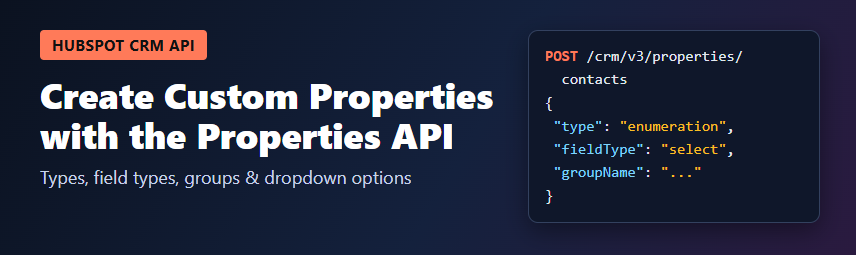
The CRM Properties API lets you create those fields from code, so your setup is repeatable and reviewable in Git. This guide covers the endpoints, the type and fieldType pairs HubSpot accepts, property groups, dropdown options, unique values, and a small Node.js script you can run again and again without creating duplicates.
What you need
- A private app access token (or an OAuth app) for the HubSpot account.
- The schema scopes for each object you touch, for example
crm.schemas.contacts.readandcrm.schemas.contacts.writefor contact properties,crm.schemas.companies.writefor companies andcrm.schemas.deals.writefor deals. Record scopes such ascrm.objects.contacts.writeare not enough to change properties. - Node.js 18 or newer (for the built-in
fetch).
The endpoints at a glance
All paths use the object type in the URL (contacts, companies, deals, tickets, or a custom object ID):
GET /crm/v3/properties/{objectType}lists all properties of the object.GET /crm/v3/properties/{objectType}/{propertyName}reads one property.POST /crm/v3/properties/{objectType}creates a property.PATCH /crm/v3/properties/{objectType}/{propertyName}updates a property.DELETE /crm/v3/properties/{objectType}/{propertyName}archives (deletes) a property.POST /crm/v3/properties/{objectType}/batch/create,/batch/readand/batch/archivework on several properties in one call./crm/v3/properties/{objectType}/groupslists, creates and updates property groups.
The five required fields
Every new property needs:
name: the internal name used by the API, workflows and HubL. Use lowercase letters, numbers and underscores, starting with a letter. You cannot rename it later, so choose carefully.label: what people see in HubSpot. You can change it any time.type: how the value is stored.fieldType: how the value is shown and edited in forms and the record sidebar.groupName: the property group it belongs to, such ascontactinformationfor contacts or a group you create yourself.
Useful optional fields are description (shown to users as help text), options (required for dropdowns and checkboxes), formField (whether the property can be used in HubSpot forms), hasUniqueValue and displayOrder.
Valid type and fieldType pairs
Most failed create requests come from a type and fieldType that do not belong together. These are the common pairs:
| type | fieldType | Use it for |
|---|---|---|
string | text | Single-line text, IDs, short codes |
string | textarea | Multi-line text, notes |
string | phonenumber | Phone numbers with HubSpot formatting |
string | html | Rich text |
string | file | File upload |
number | number | Counts, amounts, scores |
date | date | A calendar date without a time |
datetime | date | A date with a time |
enumeration | select | Dropdown, one value |
enumeration | radio | Radio buttons, one value |
enumeration | checkbox | Multiple checkboxes, several values |
enumeration | booleancheckbox | Single on/off checkbox (needs true and false options) |
bool | booleancheckbox | Single on/off checkbox |
Two details that save debugging time:
- When you write a date property on a record, send midnight UTC as a millisecond timestamp or as
YYYY-MM-DD. A timestamp with a time part is rejected for date properties. - Values of a multiple checkbox property are stored as one string with options separated by semicolons, for example
"hubspot;wordpress".
Step 1: create a property group
Groups keep your custom fields together in the record sidebar and settings, which helps a lot when several integrations add fields to the same object.
POST https://api.hubapi.com/crm/v3/properties/contacts/groups
Authorization: Bearer YOUR_TOKEN
Content-Type: application/json

{
  "name": "cyfervoid_integration",
  "label": "Cyfervoid integration",
  "displayOrder": -1
}
A displayOrder of -1 places the group after the ones with a positive order.
Step 2: create a dropdown property
POST https://api.hubapi.com/crm/v3/properties/contacts
Authorization: Bearer YOUR_TOKEN
Content-Type: application/json

{
  "name": "subscription_plan",
  "label": "Subscription plan",
  "description": "Current plan, synced from billing.",
  "groupName": "cyfervoid_integration",
  "type": "enumeration",
  "fieldType": "select",
  "formField": false,
  "options": [
    { "label": "Free",     "value": "free",     "displayOrder": 0 },
    { "label": "Pro",      "value": "pro",      "displayOrder": 1 },
    { "label": "Business", "value": "business", "displayOrder": 2 }
  ]
}
The value of each option is what your code writes and what filters and workflows compare against. The label is only display text, so you can rename it later without breaking anything. Keep values short, lowercase and stable.
If a property with the same name already exists, HubSpot answers with 409 Conflict. Your setup script should treat that as "already there" instead of failing.
Step 3: create a unique ID property
If you sync records from another system, a unique external ID is the safest way to match them. Set hasUniqueValue to true and HubSpot will reject a second record with the same value. You can then use the property as the idProperty for batch upserts.
{
  "name": "billing_customer_id",
  "label": "Billing customer ID",
  "groupName": "cyfervoid_integration",
  "type": "string",
  "fieldType": "text",
  "hasUniqueValue": true
}
HubSpot limits how many unique-value properties each object can have (the documented limit is ten per object). Set hasUniqueValue when you create the property rather than planning to switch it on later, and decide on these fields before you build the sync.
Step 4: add dropdown options later without losing old ones
This is the most common mistake with the Properties API. When you PATCH a property and send options, the array you send replaces the existing list. If you send only the new option, the others disappear from the property definition.
Always read the property first, merge your new options into the existing list, and send the full list back:
PATCH https://api.hubapi.com/crm/v3/properties/contacts/subscription_plan
Content-Type: application/json

{
  "options": [
    { "label": "Free",       "value": "free",       "displayOrder": 0 },
    { "label": "Pro",        "value": "pro",        "displayOrder": 1 },
    { "label": "Business",   "value": "business",   "displayOrder": 2 },
    { "label": "Enterprise", "value": "enterprise", "displayOrder": 3 }
  ]
}
To retire an option without removing it, set "hidden": true on it. Existing records keep their value, but people can no longer choose it.
A repeatable Node.js setup script
The script below makes sure a group and a list of properties exist. It creates what is missing, adds missing dropdown options while keeping the existing ones, and leaves everything else alone, so you can run it on every deploy.
// ensure-properties.mjs  (Node.js 18+)
const TOKEN = process.env.HUBSPOT_TOKEN;
const BASE = 'https://api.hubapi.com/crm/v3/properties';

async function hs(method, path, body) {
  const res = await fetch(BASE + path, {
    method,
    headers: {
      Authorization: `Bearer ${TOKEN}`,
      'Content-Type': 'application/json',
    },
    body: body ? JSON.stringify(body) : undefined,
  });
  const text = await res.text();
  const data = text ? JSON.parse(text) : null;
  return { status: res.status, data };
}

async function ensureGroup(objectType, group) {
  const { status, data } = await hs('POST', `/${objectType}/groups`, group);
  if (status === 201) return console.log(`Created group ${group.name}`);
  if (status === 409) return console.log(`Group ${group.name} exists`);
  throw new Error(`Group ${group.name}: ${status} ${JSON.stringify(data)}`);
}

async function ensureProperty(objectType, prop) {
  const existing = await hs('GET', `/${objectType}/${prop.name}`);

  if (existing.status === 404) {
    const created = await hs('POST', `/${objectType}`, prop);
    if (created.status !== 201) {
      throw new Error(`${prop.name}: ${created.status} ${JSON.stringify(created.data)}`);
    }
    return console.log(`Created ${prop.name}`);
  }
  if (existing.status !== 200) {
    throw new Error(`${prop.name}: ${existing.status} ${JSON.stringify(existing.data)}`);
  }

  // Property exists: only add missing options, never drop old ones.
  if (prop.options?.length) {
    const current = existing.data.options ?? [];
    const known = new Set(current.map((o) => o.value));
    const missing = prop.options.filter((o) => !known.has(o.value));
    if (missing.length) {
      const merged = [...current, ...missing].map((o, i) => ({ ...o, displayOrder: i }));
      const updated = await hs('PATCH', `/${objectType}/${prop.name}`, { options: merged });
      if (updated.status !== 200) {
        throw new Error(`${prop.name}: ${updated.status} ${JSON.stringify(updated.data)}`);
      }
      return console.log(`Added ${missing.length} option(s) to ${prop.name}`);
    }
  }
  console.log(`${prop.name} is up to date`);
}

const GROUP = { name: 'cyfervoid_integration', label: 'Cyfervoid integration', displayOrder: -1 };

const PROPERTIES = [
  {
    name: 'billing_customer_id',
    label: 'Billing customer ID',
    groupName: GROUP.name,
    type: 'string',
    fieldType: 'text',
    hasUniqueValue: true,
  },
  {
    name: 'subscription_plan',
    label: 'Subscription plan',
    groupName: GROUP.name,
    type: 'enumeration',
    fieldType: 'select',
    options: [
      { label: 'Free', value: 'free' },
      { label: 'Pro', value: 'pro' },
      { label: 'Business', value: 'business' },
    ],
  },
  {
    name: 'trial_ends_on',
    label: 'Trial ends on',
    groupName: GROUP.name,
    type: 'date',
    fieldType: 'date',
  },
];

await ensureGroup('contacts', GROUP);
for (const prop of PROPERTIES) {
  await ensureProperty('contacts', prop);
}
Run it with HUBSPOT_TOKEN=... node ensure-properties.mjs. Test it in a sandbox or developer test account first, then point it at production.
The script deliberately does not change type, fieldType or labels of existing properties. Changing the type of a property that already holds data can make existing values invalid, so do that by hand after checking which records are affected.
Deleting properties safely
DELETE /crm/v3/properties/{objectType}/{propertyName} archives the property and hides it, together with its values, from records, lists and reports. Deleted properties can be restored from the property settings in HubSpot for a limited time, but anything that referenced the property, such as workflows, forms or reports, may stop working while it is gone. Before deleting:
- Search your codebase and integrations for the internal name.
- Check the property's usage in HubSpot settings (workflows, forms, lists and reports that use it).
- Prefer hiding obsolete dropdown options or moving an old property to an "Archived" group if you are not sure.
HubSpot's default properties cannot be deleted, and some of their settings cannot be changed.
Quick checklist
- Pick internal names you can live with forever: lowercase, underscores, no client or team names.
- Check that
typeandfieldTypeare a valid pair before you send the request. - Use stable lowercase option values; change labels, not values.
- When updating options, always send the full merged list.
- Decide on unique ID properties at creation time.
- Treat 409 Conflict as "already exists" so your script can run repeatedly.
- Give the private app only the schema scopes it needs.
If you are syncing data next, combine this with our guides on batch upsert by a unique ID and naming and governing custom properties.
Sources
- HubSpot Developers: CRM API: Properties (guide)
- HubSpot Developers: Properties API reference
- HubSpot Knowledge Base: Property field types in HubSpot
- HubSpot Developers: Scopes