When you sync data from your own app, shop or database into HubSpot, every record raises the same question: does it already exist in the CRM? The slow way is to search first, then create or update. HubSpot's CRM API has a faster option: the batch upsert endpoint. You send records with a unique identifier, and HubSpot updates the ones it finds and creates the rest, in one request.
This guide shows how batch upsert works, which properties you can use as the identifier, and how to call it safely from Node.js.
What "upsert" means in HubSpot
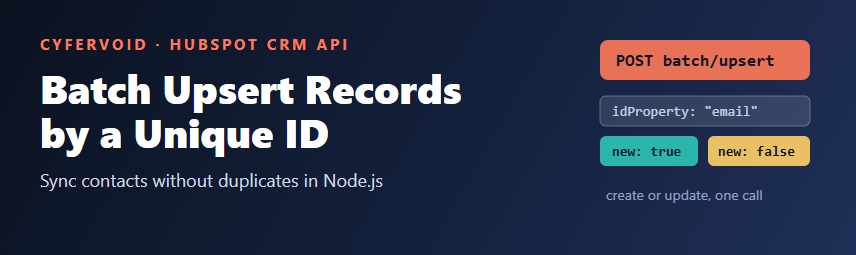
Upsert is short for "update or insert". For each record in the request, HubSpot looks for an existing record whose identifier property matches the value you send:
- If a match exists, the record is updated with the properties you send.
- If no match exists, a new record is created.
The endpoint follows the same pattern as the other CRM object APIs:
POST https://api.hubapi.com/crm/v3/objects/{objectType}/batch/upsertReplace {objectType} with contacts, companies, deals, tickets or another supported object.
Choose the right idProperty
Each input names the property HubSpot should match on (idProperty) and the value to match (id). The property must hold unique values, otherwise HubSpot could not tell which record to update. In practice you have two options:
- Contacts by email. For contacts, HubSpot accepts
emailas the identifier, which is the most common way to sync people. - A custom unique property. For any object, you can create your own property with
hasUniqueValueset totrue, for exampleexternal_customer_id, and store the ID from your own system in it. This is the safest choice when your system already has stable IDs, and the usual choice for companies and deals.
Do not use an ordinary text property such as a name or a company domain as the identifier unless its definition says it is unique. If you are not sure, read the property with GET /crm/v3/properties/{objectType}/{propertyName} and check hasUniqueValue.
Create a unique ID property
You can create the property in HubSpot settings, or with the Properties API:
POST https://api.hubapi.com/crm/v3/properties/contacts
Authorization: Bearer YOUR_PRIVATE_APP_TOKEN
Content-Type: application/json

{
  "name": "external_customer_id",
  "label": "External customer ID",
  "groupName": "contactinformation",
  "type": "string",
  "fieldType": "text",
  "hasUniqueValue": true
}
HubSpot limits how many unique-value properties each object can have, so plan them carefully. A single, well-named ID property per external system is usually enough.
The request body
A batch upsert request sends an inputs array. Each item has idProperty, id and properties:
{
  "inputs": [
    {
      "idProperty": "email",
      "id": "[email protected]",
      "properties": {
        "firstname": "Maria",
        "lastname": "Santos",
        "lifecyclestage": "lead"
      }
    },
    {
      "idProperty": "email",
      "id": "[email protected]",
      "properties": {
        "firstname": "Juan",
        "company": "Example Corp"
      }
    }
  ]
}
Keep these rules in mind:
- Send at most 100 inputs per request, the standard limit for HubSpot CRM batch endpoints. Split larger lists into chunks.
- Use property internal names (for example
firstname), not labels. - Do not send the same
idtwice in one batch. Remove duplicates from your data first so the result is predictable. - Only the properties you send are changed. Properties you leave out keep their current values.
Read the response
The response contains a results array. Each result is the saved record with its HubSpot id, its properties, and a new flag that tells you whether the record was created (true) or updated (false):
{
  "status": "COMPLETE",
  "results": [
    { "id": "51", "new": false, "properties": { "email": "[email protected]", "firstname": "Maria" } },
    { "id": "1101", "new": true,  "properties": { "email": "[email protected]", "firstname": "Juan" } }
  ]
}
Store the HubSpot id next to the record in your own database. It makes later reads, associations and deletes much easier. (The example above is shortened; real responses include more fields such as timestamps.)
A Node.js example
This example uses the built-in fetch in Node.js 18 or later and a private app access token stored in an environment variable. The app needs the write scope for the object, for example crm.objects.contacts.write. Creating properties through the API also needs the matching schema scope, such as crm.schemas.contacts.write.
const TOKEN = process.env.HUBSPOT_TOKEN;
const BATCH_SIZE = 100;

function chunk(list, size) {
  const out = [];
  for (let i = 0; i < list.length; i += size) out.push(list.slice(i, i + size));
  return out;
}

async function upsertContacts(people) {
  // Remove duplicate emails so one batch never contains the same id twice
  const unique = [...new Map(
    people.map(p => [p.email.trim().toLowerCase(), p])
  ).values()];

  const summary = { created: 0, updated: 0, failedBatches: [] };

  for (const group of chunk(unique, BATCH_SIZE)) {
    const res = await fetch(
      'https://api.hubapi.com/crm/v3/objects/contacts/batch/upsert',
      {
        method: 'POST',
        headers: {
          Authorization: `Bearer ${TOKEN}`,
          'Content-Type': 'application/json'
        },
        body: JSON.stringify({
          inputs: group.map(p => ({
            idProperty: 'email',
            id: p.email.trim().toLowerCase(),
            properties: { firstname: p.firstName, lastname: p.lastName }
          }))
        })
      }
    );

    const body = await res.json();

    if (!res.ok) {
      // Keep the whole batch so it can be fixed and retried later
      summary.failedBatches.push({ status: res.status, message: body.message, group });
      continue;
    }

    for (const r of body.results || []) {
      if (r.new) summary.created++;
      else summary.updated++;
    }

    // Some batch responses report per-record problems in an "errors" array
    if (body.errors && body.errors.length) {
      summary.failedBatches.push({ status: res.status, errors: body.errors, group });
    }
  }

  return summary;
}
The function returns a summary you can log or show in an admin screen: how many contacts were created, how many were updated, and which batches need attention.
Handle errors and rate limits
- 400 errors usually mean bad input: an unknown property name, a value that does not fit the property type (for example text in a number field), or an
idPropertythat is not unique. Readmessagein the response; it normally names the problem. - Partial results. A batch can succeed for some records and report errors for others. Always check for an
errorsarray, not only the HTTP status. - 429 Too Many Requests means you hit a rate limit. Batching already cuts the number of calls by up to 100 times, but large syncs should still retry with backoff. See our guide on handling HubSpot API rate limits in Node.js.
When to use upsert, and when not to
Batch upsert is a great fit for:
- Nightly or hourly syncs from another system, such as an e-commerce store or billing tool.
- Imports where you cannot know in advance which records already exist.
- Re-running a failed sync safely: sending the same data again updates records instead of creating duplicates.
Use a different approach when:
- You already have HubSpot record IDs. Then
batch/updatewith those IDs is clearer. - You need to find records by several conditions first. Use the CRM search API instead.
- You need to link the records together afterwards. Upsert writes properties; use the Associations API v4 to connect contacts, companies and deals.
Checklist before you go live
- The
idPropertyis unique (emailfor contacts, or a property withhasUniqueValue: true). - Identifiers are cleaned (trimmed, consistent case for emails) and de-duplicated.
- Batches contain no more than 100 inputs.
- Your code counts
new: trueandnew: falseresults and logs errors. - 429 responses are retried with backoff, and the token is kept on the server, never in browser code.
- You tested the sync first in a developer test account or sandbox.
With a unique identifier and batch upsert, your integration stops guessing whether a record exists. It sends the data once, and HubSpot keeps one clean record for each customer.