A rigid template makes every layout change a developer ticket. A fully open page lets editors break the design. Drag and drop areas sit in between: you decide where editors can build, and which defaults they start from. This article shows how to add them to a HubSpot CMS template with HubL.
What a drag and drop area is
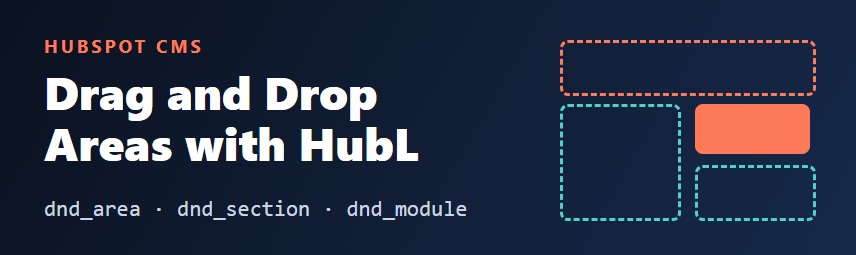
A drag and drop area (dnd_area) is a region of a template where editors can add, move and remove sections and modules in the page editor. Everything outside the area stays fixed, so your header, footer and global styles are protected. Inside the area, the structure follows a simple hierarchy:
dnd_area: the editable region, with a unique name.dnd_section: a full-width horizontal band, which can have its own background.dnd_column: a column inside a section, on a 12-column grid.dnd_row: an optional row for stacking content inside a column.dnd_module: a module placed in a column, such as rich text or an image.
A minimal drag and drop area
The smallest useful version is an area with one section, one column and one rich text module as the starting content:
{% dnd_area "main_content" label="Main content" %}
  {% dnd_section %}
    {% dnd_column %}
      {% dnd_module path="@hubspot/rich_text" %}
        {% module_attribute "html" %}
          <h2>Our services</h2>
          <p>We build and maintain HubSpot CMS websites for growing teams.</p>
        {% end_module_attribute %}
      {% end_dnd_module %}
    {% end_dnd_column %}
  {% end_dnd_section %}
{% end_dnd_area %}
The first argument is the area name. Use a unique, stable name for each area in a template, because HubSpot uses it to store the content editors create. The optional label is what editors see in the editor. The text inside the module is only the default: editors can rewrite it on each page.
Sections, columns and widths
Columns use a 12-column grid. Set width to how many columns to take, and offset to skip columns before it. A two-column section with a wide main column and a narrow sidebar looks like this:
{% dnd_section vertical_alignment="MIDDLE" %}
  {% dnd_column width=8 %}
    {% dnd_module path="@hubspot/rich_text" %}
      {% module_attribute "html" %}<p>How our onboarding works, step by step.</p>{% end_module_attribute %}
    {% end_dnd_module %}
  {% end_dnd_column %}
  {% dnd_column width=4 %}
    {% dnd_module path="@hubspot/rich_text" %}
      {% module_attribute "html" %}<p>Questions? Contact our team.</p>{% end_module_attribute %}
    {% end_dnd_module %}
  {% end_dnd_column %}
{% end_dnd_section %}
Sections also accept style parameters such as background_color and vertical_alignment. Check HubSpot's current drag and drop area documentation for the full list of parameters and their accepted values before relying on one.
Defaults are a starting point, not a lock
The sections, columns and modules you write in the template are the default content for new pages. Editors can then change, move or delete them on each page. Two consequences are worth knowing:
- If you want something that editors cannot remove, put it outside the drag and drop area, as a fixed module or plain HTML in the template.
- Changing the defaults later does not necessarily rewrite pages that were already edited, so test changes on an existing page, not only a new one.
Keep fixed parts outside the area
A good template mixes both approaches. The header, footer and any legal or tracking markup stay in the template, while the body is a drag and drop area:
{% extends "./layouts/base.html" %}

{% block body %}
  {% dnd_area "main_content" label="Main content" %}
    {% dnd_section %}
      {% dnd_column %}
        {% dnd_module path="@hubspot/rich_text" %}
          {% module_attribute "html" %}<h1>Welcome</h1>{% end_module_attribute %}
        {% end_dnd_module %}
      {% end_dnd_column %}
    {% end_dnd_section %}
  {% end_dnd_area %}
{% endblock body %}
This pairs well with template inheritance: the base layout owns the structure, and each child template defines the drag and drop area for its page type. As always, the base layout must still include standard_header_includes and standard_footer_includes.
When not to use a drag and drop area
- Strictly governed pages. If a page must look the same every time (a pricing table, a legal page), use fixed modules with fields instead.
- Brand-sensitive spacing. Free-form layout lets editors create inconsistent spacing. Set sensible section defaults and brief editors on what to change.
- Many areas per template. Each area is a separate editing surface. One main area, or two at most, is easier for editors than five.
Practical checklist
- Give each
dnd_areaa unique, stable name and a clear label. - Start with sensible default sections so new pages are not empty.
- Keep header, footer and compliance content outside the area.
- Check the result at phone width, since columns stack on small screens.
- Edit a real page in the editor: add, move and delete a section, and confirm nothing breaks.
- Write a short note for editors on which modules to use where.
Wrap-up
Drag and drop areas let editors build pages without developer help while the template keeps the parts that must not change. Define one clear area with good defaults, keep fixed content outside it, and test with a real editing session.
Sources
- HubSpot Developer Documentation: drag and drop areas (dnd_area, dnd_section, dnd_column, dnd_row, dnd_module).
- HubSpot Developer Documentation: HubL templates and required includes.