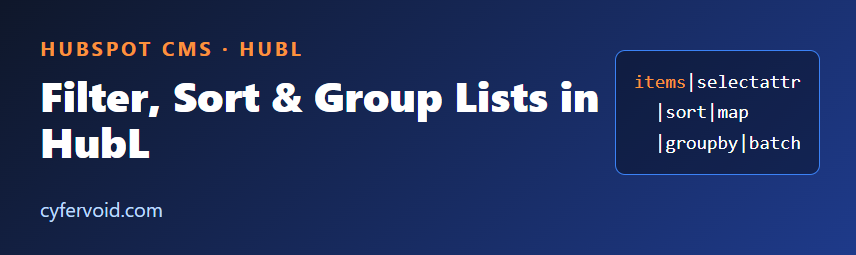
Sooner or later every HubSpot template has to deal with a list: HubDB rows, a repeater group in a custom module, blog posts, or a menu. The data rarely arrives in the exact shape the design needs. You want only the featured items, sorted by date, grouped by category, or split into rows of three. HubL ships with list filters that do exactly this inside the template, so you do not need extra JavaScript or a second HubDB table.
The filter pipe in one minute
A HubL filter takes a value on its left and transforms it. Filters are chained with the pipe character, and each step receives the output of the previous one:
{% set names = items|selectattr("active")|sort(false, false, "name")|map(attribute="name")|list %}Read it left to right: take items, keep the active ones, sort them by name, pull out just the name field, and turn the result into a list.
Keep or drop items: selectattr and rejectattr
selectattr keeps the objects whose attribute passes a test. With only an attribute name, it keeps items where that attribute is truthy. rejectattr does the opposite.
{# Rows where the "featured" boolean column is true #}
{% set featured = module.cards|selectattr("featured") %}

{# Rows where "featured" is NOT true #}
{% set regular = module.cards|rejectattr("featured") %}

{# Compare with a value using a test #}
{% set uk_offices = offices|selectattr("country", "equalto", "UK") %}
Tip: for HubDB, filter in the query when you can (hubdb_table_rows accepts a query string), because it fetches fewer rows. Use selectattr when the list is already in memory, such as module fields or the result of one shared query that you need to slice in several ways.
Order the list: sort
The sort filter orders a list. Its parameters are reverse, case_sensitive and attribute, in that order:
{# Ascending by title, case-insensitive #}
{% set by_title = items|sort(false, false, "title") %}

{# Newest first #}
{% set newest = items|sort(true, false, "published_date") %}
Sorting works best on one consistent value type per attribute. If a column mixes numbers and text, or has empty values, test the output with real data before shipping.
Pull out one field: map
When you only need one property from every object, use map with the attribute parameter:
{% set tags = posts|map(attribute="name")|list %}
{{ tags|join(", ") }}
This is handy for building a comma-separated label, an alt text, or JSON-LD values from a list of items.
Remove duplicates: unique
{% set categories = rows|map(attribute="category")|unique|list %}This builds a clean list of category names from rows that repeat them, which is perfect for a filter bar above a card grid.
Group by a field: groupby
groupby splits a list into groups that share the same value for an attribute. Each group has a grouper (the shared value) and a list (the members):
{% for group in team|groupby("department") %}
  <h3>{{ group.grouper }}</h3>
  <ul>
    {% for person in group.list %}
      <li>{{ person.name }}</li>
    {% endfor %}
  </ul>
{% endfor %}
That one loop produces a team page organised by department without maintaining separate lists for each department.
Split into rows: batch
batch cuts a list into chunks of a fixed size. It is useful for grids where every row needs its own wrapper element:
{% for row in cards|batch(3) %}
  <div class="row">
    {% for card in row %}
      <div class="col">{{ card.title }}</div>
    {% endfor %}
  </div>
{% endfor %}
If a modern CSS grid can do the layout, prefer it, since it needs no row wrappers. Use batch when the markup genuinely requires rows, for example carousels with slides of three.
Small helpers worth knowing
lengthreturns the number of items, useful for hiding a section when a filtered list is empty.firstandlastreturn the first or last item.reverseflips the order.joinmerges a list into a string.
{% set featured = cards|selectattr("featured")|list %}
{% if featured|length > 0 %}
  <section class="featured">...</section>
{% endif %}
Common mistakes
- Forgetting
|list. Filters such asselectattrandmapmay not give you a plain list. Add|listwhen you need to store the result, count it or loop over it more than once. - Filtering after fetching too much. Large HubDB tables should be narrowed in the query first, then refined with filters.
- Wrong attribute names. A misspelled attribute usually shows up as missing or empty output rather than a clear error. Print the object with
{{ item|pprint }}while debugging to see the real field names. - Logic that is too long. A chain of five filters on one line is hard to read. Use
{% set %}for each step, or wrap repeated logic in a macro.
Quick checklist
- Can the data source (HubDB query, blog tag) do the filtering for you? Do it there first.
- Use
selectattrandrejectattrfor what is left. - Sort, then group or batch, in that order.
- Test with an empty list, one item and many items.
- Check the result in preview with real content, not placeholders.
Mastering these few filters keeps templates short and lets editors manage content in one place while the layout adapts. For full syntax and the complete filter list, check the HubL filters reference in the HubSpot developer documentation and confirm the parameter order there before relying on a filter in production.