Almost every HubSpot site needs a header menu, a footer menu or a sidebar list of links. HubSpot lets editors manage menus in Content > Navigation, and HubL gives developers two ways to output them. This article explains both, shows how to take full control of the markup, and covers active states and accessibility.
The two ways to render a menu
1. The menu tag. It outputs a ready-made nested list and is the quickest option:
{% menu "primary_menu"
  id="12345678",
  root_type="site_root"
%}
The result is a standard <ul> structure with HubSpot's own class names. It is fine for simple cases, but you have little control over the markup.
2. The menu() function. It returns the menu as data, so you write the HTML yourself:
{% set nav = menu("12345678") %}Use the function whenever you need custom classes, a different wrapper element, icons, or ARIA attributes.
Looping over menu items
Each item in the returned list has properties such as label, url, children, active and activeBranch. A basic top-level menu looks like this:
{% set nav = menu("12345678") %}
<nav aria-label="Main">
  <ul class="nav">
    {% for item in nav %}
      <li class="nav__item">
        <a href="{{ item.url }}">{{ item.label }}</a>
      </li>
    {% endfor %}
  </ul>
</nav>
Supporting dropdowns with children
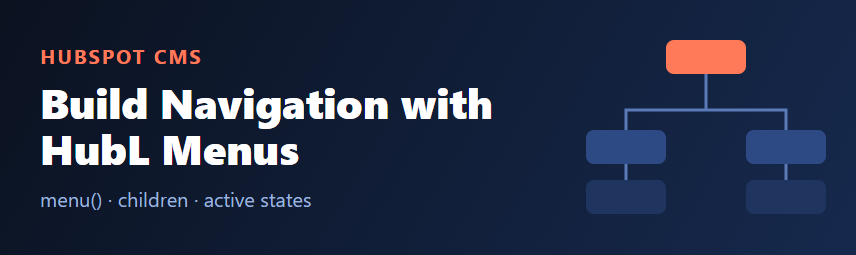
Items that have sub-pages carry a children list. Check that it is not empty before printing a nested list:
{% for item in nav %}
  <li class="nav__item">
    <a href="{{ item.url }}">{{ item.label }}</a>
    {% if item.children %}
      <ul class="nav__sub">
        {% for child in item.children %}
          <li><a href="{{ child.url }}">{{ child.label }}</a></li>
        {% endfor %}
      </ul>
    {% endif %}
  </li>
{% endfor %}
For deeper menus, put the list in a HubL macro and call it recursively, so you do not repeat the same block at every level.
Marking the active page
Use active for the current page and activeBranch for a parent whose child is the current page. Add a class for styling and aria-current for assistive technology:
<a href="{{ item.url }}"
   class="{{ 'is-active' if item.active }} {{ 'is-parent' if item.activeBranch }}"
   {% if item.active %}aria-current="page"{% endif %}>
  {{ item.label }}
</a>
Letting editors pick the menu: a menu field
Hard-coding a menu ID makes a module hard to reuse, and the ID differs between portals. Add a menu field to the module's fields.json instead:
[
  {
    "name": "menu",
    "label": "Menu",
    "type": "menu",
    "required": true
  }
]
Then read it in module.html:
{% set nav = menu(module.menu) %}Editors now choose any menu from a dropdown in the page editor. Test the module with the field left empty, and keep your template safe by wrapping the output in {% if nav %}.
Checklist
- Use the
menutag for quick results andmenu()when you need your own markup. - Wrap the list in a
<nav>with anaria-label, especially when a page has more than one navigation. - Use
activeandactiveBranchfor visual states, andaria-current="page"for the current link. - Add a menu field to reusable modules instead of hard-coding IDs.
- Check output in the preview for a page that sits inside a submenu, not just the home page.
Sources
HubSpot Developer Documentation: HubL menu tag and menu() function, and the module and theme fields reference (menu field type).