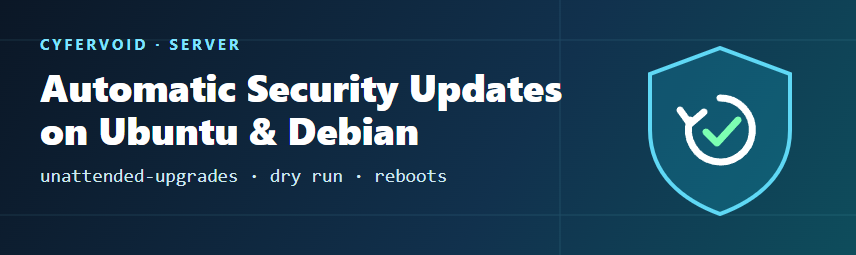
Many server break-ins do not need a brand-new exploit. They use a bug that was fixed weeks or months earlier on a machine that was never patched. On Ubuntu and Debian, the unattended-upgrades package closes that gap by installing security updates for you every day. This guide shows how to turn it on, keep it limited to security fixes, test it, check what it did, and handle reboots without surprises.
The steps below are for Ubuntu Server and Debian. A short section at the end covers the equivalent tool on RHEL-based systems.
1. Check whether it is already installed and enabled
On Ubuntu Server, unattended-upgrades is normally installed and enabled by default, and it installs security updates only. On Debian it depends on how the system was installed, so check first:
apt list --installed 2>/dev/null | grep unattended-upgrades
cat /etc/apt/apt.conf.d/20auto-upgrades
If the second file exists and contains both lines below, automatic updates are switched on:
APT::Periodic::Update-Package-Lists "1";
APT::Periodic::Unattended-Upgrade "1";
The value is an interval in days. "1" means every day and "0" means off.
2. Install and enable it
If the package is missing, install it. apt-listchanges is optional and shows changelog notes for upgraded packages.
sudo apt update
sudo apt install unattended-upgrades apt-listchanges
Then enable it. This command asks one question and writes /etc/apt/apt.conf.d/20auto-upgrades for you:
sudo dpkg-reconfigure -plow unattended-upgradesAnswer Yes and check the file again with cat as shown in step 1.
3. Decide what gets installed
The main settings live in /etc/apt/apt.conf.d/50unattended-upgrades. Lines starting with // are comments, so a setting is active only when its // is removed.
On Ubuntu, the list of allowed sources is Unattended-Upgrade::Allowed-Origins. By default the release and security pockets are active, plus the Ubuntu Pro (ESM) security pockets when Ubuntu Pro is enabled. General updates, proposed and backports are commented out:
Unattended-Upgrade::Allowed-Origins {
        "${distro_id}:${distro_codename}";
        "${distro_id}:${distro_codename}-security";
        "${distro_id}ESMApps:${distro_codename}-apps-security";
        "${distro_id}ESM:${distro_codename}-infra-security";
//      "${distro_id}:${distro_codename}-updates";
//      "${distro_id}:${distro_codename}-proposed";
//      "${distro_id}:${distro_codename}-backports";
};
Leave -updates, -proposed and -backports commented out on production servers. Security fixes are small and targeted; general updates are better installed during a planned maintenance window.
On Debian, the same idea uses Unattended-Upgrade::Origins-Pattern. The default file already includes the Debian security archive, with a line such as:
"origin=Debian,codename=${distro_codename}-security,label=Debian-Security";The exact default lines differ between Debian releases, so keep the ones your package shipped rather than copying a list from another version.
Exclude packages you want to update by hand
Some packages are risky to restart without warning, for example a database server or a custom kernel module. Add them to the block list. Each entry is a regular expression matched against the package name:
Unattended-Upgrade::Package-Blacklist {
    "mysql-server";
    "postgresql-";
};
Keep this list short. Every package on it is a package you must now patch yourself.
4. Useful options
These options are already in the default file, usually commented out. Remove the // and set the value you want.
| Option | What it does | Suggested value |
|---|---|---|
Unattended-Upgrade::Mail | Sends a report to this address (needs a working local mail setup such as mailx with a mail relay). | Your ops mailbox |
Unattended-Upgrade::MailReport | When to send the report: always, only-on-error or on-change. Older releases use MailOnlyOnError instead. | "on-change" |
Unattended-Upgrade::Remove-Unused-Kernel-Packages | Removes old kernel packages so /boot does not fill up. | "true" |
Unattended-Upgrade::Remove-Unused-Dependencies | Removes packages that are no longer needed after an upgrade. | "true" if you do not rely on them |
Unattended-Upgrade::Automatic-Reboot | Reboots by itself when an update needs it. | "false" unless the service can tolerate it (see step 7) |
Unattended-Upgrade::Automatic-Reboot-Time | Time of day for that reboot. | A quiet hour, for example "03:30" |
Unattended-Upgrade::Automatic-Reboot-WithUsers | Whether to reboot even when users are logged in. | "false" on shared hosts |
Example of the lines after editing:
Unattended-Upgrade::Mail "[email protected]";
Unattended-Upgrade::MailReport "on-change";
Unattended-Upgrade::Remove-Unused-Kernel-Packages "true";
Unattended-Upgrade::Automatic-Reboot "false";
5. Test with a dry run
Never wait until tomorrow to find out whether a config change worked. A dry run reads your settings, shows which origins are allowed and which packages would be upgraded, and changes nothing:
sudo unattended-upgrade --dry-run --debugLook for the Allowed origins are: line near the top and check that it lists only the sources you expect. A syntax error in the config file (a missing quote or semicolon) also shows up here.
6. Check when it runs and what it did
On current Ubuntu and Debian releases, two systemd timers drive the process: apt-daily.timer refreshes the package lists and apt-daily-upgrade.timer installs the updates. Both use a random delay so that many servers do not hit the mirrors at the same moment.
systemctl list-timers 'apt-daily*'The results are written to these logs:
/var/log/unattended-upgrades/unattended-upgrades.log: what was allowed, upgraded, skipped or held back./var/log/unattended-upgrades/unattended-upgrades-dpkg.log: the full package installer output./var/log/apt/history.log: every apt change, including those you made by hand.
sudo tail -n 50 /var/log/unattended-upgrades/unattended-upgrades.logIf you change the timer schedule, use sudo systemctl edit apt-daily-upgrade.timer to create an override instead of editing the shipped unit file.
7. Reboots: the part people forget
A new kernel or core library is only used after a reboot (or, for libraries, after the services that use them restart). Installing the update without rebooting leaves the old, vulnerable code running.
On Ubuntu, packages that need a reboot create a flag file. Check it with:
[ -f /var/run/reboot-required ] && cat /var/run/reboot-required /var/run/reboot-required.pkgsYou have three reasonable choices:
- Automatic reboot at a fixed quiet time with
Automatic-Reboot "true". Good for servers behind a load balancer or with a short, accepted downtime. - Planned manual reboot: leave automatic reboot off, watch for the flag file in your monitoring, and reboot in a maintenance window.
- Live kernel patching (for example Canonical Livepatch on Ubuntu Pro) to reduce how often kernel fixes need a reboot. It does not remove the need for reboots entirely.
Whatever you choose, make sure someone or something actually checks the flag. A server that installs updates but never reboots looks patched on paper only.
8. Common problems
- "Nothing happens." Check that both lines in
20auto-upgradesare set to"1"and that the timers are listed as active. - Packages "kept back". Updates that need new dependencies or ask a config question may be skipped. The log names them. Install them by hand with
sudo apt upgradeafter reading what changes. - Lock errors when you run apt yourself. The daily upgrade is probably running. Wait for it to finish instead of deleting lock files.
- Full
/bootpartition. Turn onRemove-Unused-Kernel-Packagesand remove old kernels withsudo apt autoremove. - Edits lost or conflicts after an upgrade. You can put your own settings in a separate file, for example
/etc/apt/apt.conf.d/52unattended-upgrades-local. Files are read in name order, so later files override earlier ones.
RHEL, Rocky Linux and AlmaLinux: dnf-automatic
RHEL 8 and 9 and their rebuilds use dnf-automatic instead:
sudo dnf install dnf-automaticIn /etc/dnf/automatic.conf, set:
[commands]
upgrade_type = security
apply_updates = yes
Then start the timer:
sudo systemctl enable --now dnf-automatic.timerThe same rules apply: test the result, read the logs, and plan reboots.
Quick checklist
unattended-upgradesinstalled, and both lines in20auto-upgradesset to"1".- Only security origins allowed on production servers.
- Short block list for packages you patch by hand.
- Dry run passes and shows the expected origins.
- Logs or email reports are read by someone.
- A clear reboot plan, with the reboot-required flag monitored.
Automatic security updates are not a full patch strategy, but they remove a very common way in for attackers: known bugs left unpatched. Combined with key-only SSH login and a firewall, they are one of the cheapest security wins you can make on a Linux server.
Sources
- Ubuntu Server documentation: Automatic updates (documentation.ubuntu.com/server)
- Debian Wiki: UnattendedUpgrades (wiki.debian.org/UnattendedUpgrades)
- unattended-upgrades project and its default configuration file (github.com/mvo5/unattended-upgrades)
- Red Hat Enterprise Linux documentation: Managing software with the DNF tool, automatic updates with dnf-automatic