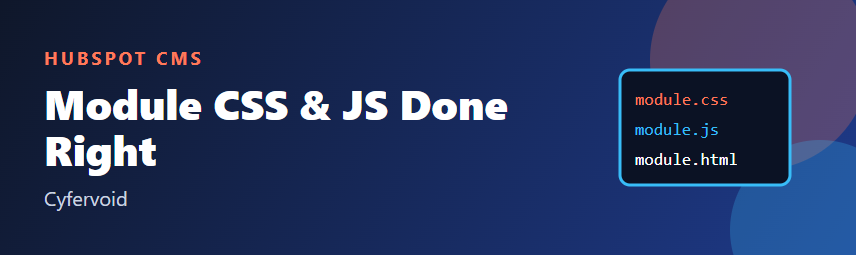
A HubSpot custom module is more than module.html. Each module can also ship its own module.css and module.js, so a component carries its styling and behavior with it. Used well, this keeps pages light and modules portable. Used carelessly, it leaks styles across the site and breaks as soon as an editor drops the same module twice on a page. This guide covers a pattern that avoids both problems.
What each file is for
- module.html: the markup, written in HTML and HubL. This is where you read field values and render them.
- module.css: styles for that module. HubSpot includes it on pages that use the module, and only once per page, no matter how many instances there are.
- module.js: behavior for that module. It is also included once per page, not once per instance.
- fields.json and meta.json: the editor fields and module settings.
The key consequence: module.css and module.js are shared by every instance on the page. They cannot know which instance they are talking about unless you tell them through the markup.
Step 1: Scope your CSS with a module class
Give the module's root element a unique class and write every rule underneath it.
<!-- module.html -->
<section class="cv-promo">
  <h2 class="cv-promo__title">{{ module.heading }}</h2>
  <p class="cv-promo__text">{{ module.text }}</p>
</section>
/* module.css */
.cv-promo { padding: 2rem; border-radius: 8px; background: var(--cv-promo-bg, #f5f8fa); }
.cv-promo__title { margin: 0 0 .5rem; font-size: 1.5rem; }
.cv-promo__text { margin: 0; }Avoid bare element selectors such as h2 { ... } or generic class names such as .title. They apply to the entire page and will collide with the theme or other modules. A prefix per module (here cv-promo) is a cheap and reliable convention.
Step 2: Pass field values to CSS with custom properties
Because module.css is shared, per-instance values such as a background color should be handed over from module.html. An inline CSS custom property does this cleanly:
<section class="cv-promo"
  style="--cv-promo-bg: {{ module.background_color.color }};">
  ...
</section>
The rule in module.css already reads var(--cv-promo-bg, #f5f8fa), so each instance gets its own color and the stylesheet stays static. The fallback after the comma only applies if the property is not set at all, so wrap the style attribute in a HubL {% if module.background_color.color %} check when the field can be empty.
Step 3: Make module.js work for every instance
Since the script is included once, never assume there is a single module on the page. Select all instances and initialize each one:
// module.js
document.querySelectorAll('.cv-promo[data-cv-promo]').forEach(function (el) {
  var button = el.querySelector('.cv-promo__toggle');
  if (!button) return;
  if (el.dataset.cvPromoOpen === 'true') {
    el.classList.add('is-open');
  }
  button.addEventListener('click', function () {
    el.classList.toggle('is-open');
  });
});
Pass per-instance settings through data- attributes in module.html:
<section class="cv-promo" data-cv-promo data-cv-promo-open="{{ module.start_open ? 'true' : 'false' }}">
  ...
  <button type="button" class="cv-promo__toggle">Show details</button>
</section>
This approach has three benefits: it works with any number of instances, it never relies on element IDs that would duplicate, and the script contains no editor-specific values.
Step 4: Be careful with scripts that run early
Make sure your code tolerates the markup not being where you expect. Use a guard such as if (!button) return;, and if you need to be certain the DOM is ready, wrap the initialization in a DOMContentLoaded listener. Test the module in the page editor and on a live preview, because the editor can re-render modules while the user edits fields.
Common mistakes
- Unscoped selectors. One generic rule in
module.csscan restyle the whole page. - Using IDs for instances. Two copies of the module produce duplicate IDs. Use classes and data attributes.
- Hardcoding editor choices in CSS or JS. Colors, states and labels belong in fields, rendered through
module.html. - Heavy libraries in a small module. Every page that uses the module pays for the script. Prefer plain JavaScript for simple behavior.
- Skipping the empty state. Only output custom properties and data attributes when the field has a value, and keep a sensible default in the stylesheet.
Checklist before you ship a module
- Every CSS rule starts with the module's prefixed class.
- Per-instance values arrive via inline custom properties or
data-attributes. - The JavaScript loops over all instances and handles missing elements.
- You tested with the module placed two or three times on the same page.
- You tested with empty optional fields, and at phone width.
Conclusion
Treat module.css and module.js as shared, static assets and treat module.html as the place where each instance describes itself. With a unique class prefix, custom properties for style values and data attributes for script settings, a module behaves the same whether it appears once or ten times. For more on the files that make up a module, see HubSpot's developer documentation on custom modules.