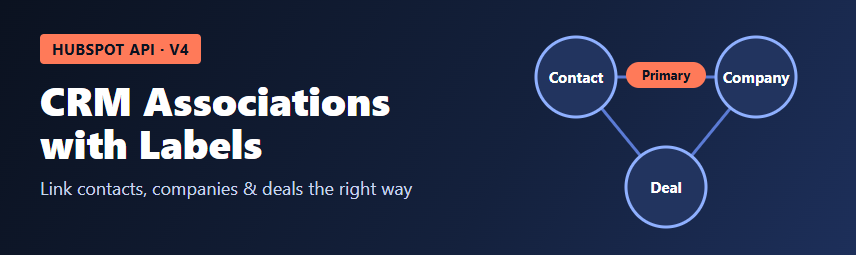
A HubSpot contact on its own is just a name and an email address. What makes the CRM useful is how records are connected: which company a contact works for, which contacts are involved in a deal, which tickets belong to a customer. In HubSpot these connections are called associations. If your integration creates deals or imports contacts, it also has to create the right associations, or your sales team will see records with no context. This guide shows how the Associations API v4 works, the details that cause the most bugs, and a working Node.js example.
Unlabeled and labeled associations
Every association has a type. A type is identified by two values:
associationCategory: who defined the type.HUBSPOT_DEFINEDfor built-in types,USER_DEFINEDfor labels created in your account, andINTEGRATOR_DEFINEDfor types created by an app.associationTypeId: a number that identifies the type within that category.
An unlabeled (default) association simply says "these two records are related". A labeled association adds meaning, for example "Decision maker" between a contact and a deal, or "Billing contact" between a contact and a company. One pair of records can have several labels at the same time.
Association types are directional
Each type ID describes one direction. "Contact to company" and "company to contact" have different IDs. When you create an association in one direction, HubSpot creates the matching reverse association for you, so you only need to make one call. But you must send the type ID that matches the direction of your request URL. Sending a company-to-contact ID on a contact-to-company request is one of the most common causes of a 400 error.
Some frequently used HubSpot-defined type IDs:
| From | To | Type | associationTypeId |
|---|---|---|---|
| Contact | Company | Primary | 1 |
| Company | Contact | Primary | 2 |
| Deal | Contact | Unlabeled | 3 |
| Contact | Deal | Unlabeled | 4 |
| Deal | Company | Primary | 5 |
| Company | Deal | Primary | 6 |
| Contact | Company | Unlabeled | 279 |
| Company | Contact | Unlabeled | 280 |
Do not hardcode IDs for custom labels. They are different in every HubSpot account. Look them up with the labels endpoint shown below.
Authentication and scopes
Use a private app access token (or an OAuth token) in the Authorization: Bearer header. An association touches two objects, so the token needs scopes for both sides. To link a deal to a contact, for example, grant crm.objects.deals.write and crm.objects.contacts.write, plus the matching .read scopes if you also read associations.
Create an unlabeled association
When you only need "these records are related", use the default endpoint. It needs no request body:
PUT https://api.hubapi.com/crm/v4/objects/{fromObjectType}/{fromObjectId}/associations/default/{toObjectType}/{toObjectId}For example, to link deal 101 to contact 202:
PUT /crm/v4/objects/deals/101/associations/default/contacts/202Create a labeled association
To set one or more labels, drop /default from the path and send an array of types in the body:
PUT https://api.hubapi.com/crm/v4/objects/contacts/202/associations/companies/303

[
  { "associationCategory": "HUBSPOT_DEFINED", "associationTypeId": 1 }
]
This makes company 303 the primary company of contact 202. A contact (and likewise a deal or ticket) can have only one primary company. If you set a new primary company, the previous one stays associated but is no longer primary.
To add a custom label at the same time, add another item with "associationCategory": "USER_DEFINED" and that label's type ID.
Find your custom label IDs
List the labels that exist between two object types:
GET https://api.hubapi.com/crm/v4/associations/contacts/deals/labelsEach result contains a category, a typeId and a label. The unlabeled type is returned with a label of null. You can also create a new label with a POST to the same path, sending a display label and an internal name. Many teams prefer to create labels once in the HubSpot settings and only look them up from code.
Associate records while creating them
If you are creating a record anyway, you can attach associations in the same request with the CRM objects API. This saves a call and avoids records that exist for a moment without context:
POST https://api.hubapi.com/crm/v3/objects/deals

{
  "properties": {
    "dealname": "Website redesign",
    "amount": "8500",
    "pipeline": "default",
    "dealstage": "appointmentscheduled"
  },
  "associations": [
    {
      "to": { "id": "202" },
      "types": [{ "associationCategory": "HUBSPOT_DEFINED", "associationTypeId": 3 }]
    },
    {
      "to": { "id": "303" },
      "types": [{ "associationCategory": "HUBSPOT_DEFINED", "associationTypeId": 5 }]
    }
  ]
}
Here the type IDs are for the deal-to-contact and deal-to-company directions, because the request creates a deal.
Read a record's associations
GET https://api.hubapi.com/crm/v4/objects/contacts/202/associations/companiesEach item in results has a toObjectId and an associationTypes array listing every label on that link. Results are paged: if the response contains paging.next.after, pass it as the after query parameter to get the next page. Do not assume that the first page is the whole list.
Remove associations
- To remove every association between two records, send
DELETE /crm/v4/objects/{fromObjectType}/{fromObjectId}/associations/{toObjectType}/{toObjectId}. - To remove only one label and keep the records linked, use the batch labels endpoint:
POST /crm/v4/associations/{fromObjectType}/{toObjectType}/batch/labels/archive.
The difference matters. Calling the plain DELETE to "remove the Decision maker label" will also remove the link between the contact and the deal.
Batch requests
When you sync many records, use the batch endpoints instead of one request per pair. Each takes an inputs array:
POST /crm/v4/associations/{fromObjectType}/{toObjectType}/batch/associate/default: create unlabeled associations.POST /crm/v4/associations/{fromObjectType}/{toObjectType}/batch/create: create labeled associations.POST /crm/v4/associations/{fromObjectType}/{toObjectType}/batch/read: read associations for many records.POST /crm/v4/associations/{fromObjectType}/{toObjectType}/batch/archive: remove associations.
Batch requests have a maximum number of inputs per call, and HubSpot also limits how many records of one type can be associated with a single record. Check the current numbers in HubSpot's documentation before you size your batches.
A complete Node.js example
This script makes a company the primary company of a contact and adds a custom label to the same link. It looks up the custom label by name first, so it works in any account. It uses the built-in fetch in Node.js 18 or later. Keep the token in an environment variable on the server, never in browser code.
const TOKEN = process.env.HUBSPOT_TOKEN; // private app token with contacts + companies scopes
const BASE = "https://api.hubapi.com";

async function hubspot(method, path, body) {
  const res = await fetch(BASE + path, {
    method,
    headers: {
      Authorization: `Bearer ${TOKEN}`,
      "Content-Type": "application/json"
    },
    body: body ? JSON.stringify(body) : undefined
  });
  if (!res.ok) {
    throw new Error(`${method} ${path} failed: ${res.status} ${await res.text()}`);
  }
  return res.status === 204 ? null : res.json();
}

async function findLabelTypeId(fromType, toType, labelText) {
  const data = await hubspot("GET", `/crm/v4/associations/${fromType}/${toType}/labels`);
  const match = data.results.find((t) => t.label === labelText);
  if (!match) throw new Error(`Label "${labelText}" not found for ${fromType} to ${toType}`);
  return { associationCategory: match.category, associationTypeId: match.typeId };
}

async function linkContactToCompany(contactId, companyId) {
  const billing = await findLabelTypeId("contacts", "companies", "Billing contact");

  await hubspot(
    "PUT",
    `/crm/v4/objects/contacts/${contactId}/associations/companies/${companyId}`,
    [
      { associationCategory: "HUBSPOT_DEFINED", associationTypeId: 1 }, // primary company
      billing
    ]
  );

  const links = await hubspot("GET", `/crm/v4/objects/contacts/${contactId}/associations/companies`);
  const link = links.results.find((r) => String(r.toObjectId) === String(companyId));
  console.log("Labels on this link:", link?.associationTypes.map((t) => t.label ?? "(unlabeled)"));
}

linkContactToCompany("202", "303").catch(console.error);
Replace "Billing contact" with a label that exists in your account, or remove that part if you only need the primary company. For large imports, add retries with backoff for 429 responses and move to the batch endpoints.
Common mistakes
- Using the type ID for the wrong direction. Match the ID to the "from" and "to" objects in the URL.
- Hardcoding custom label IDs. They differ between accounts, including between a sandbox and production. Look them up by label.
- Deleting the whole association to remove one label. Use the batch labels archive endpoint instead.
- Reading only the first page of a record's associations.
- Missing scopes on one side. The token needs access to both object types.
Wrapping up
Associations turn separate CRM records into a picture of a customer relationship. Remember the core rules: type IDs are directional, the default endpoint creates unlabeled links, labels are sent as an array of category and type ID pairs, custom label IDs must be looked up, and a plain delete removes every label. With those in place, your integrations will create records that your team can actually use.