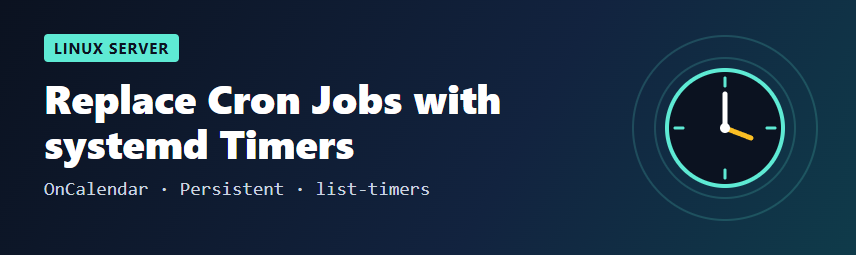
Cron has run scheduled jobs on Linux for decades, and it still works. But on any modern Ubuntu, Debian, RHEL or Fedora server, systemd timers are already running jobs for you: package updates, log rotation and temporary file cleanup are scheduled this way. Timers give you things cron does not: every run is logged in the journal, a job that is still running is not started twice, missed runs can be caught up after a reboot, and you can sandbox the job with the same security options as any other service.
This guide shows how to move a cron job to a systemd timer step by step, how to write OnCalendar schedules, and how to test and debug them without waiting for the clock.
How a systemd timer works
A timer always comes as a pair of unit files:
- A service unit (
backup.service) that says what to run. - A timer unit (
backup.timer) that says when to run it.
By default a timer starts the service with the same name (backup.timer starts backup.service). You can point it at a different service with Unit= in the [Timer] section, but keeping the names matched is simpler.
You enable and start the timer, not the service. The service has no [Install] section, because nothing should start it except the timer (or you, when testing).
Step 1: Write the script and test it by hand
Start with a script that works when you run it yourself. As an example, here is a small nightly database dump:
#!/bin/sh
# /usr/local/bin/db-backup.sh
set -eu
STAMP=$(date +%F)
/usr/bin/mysqldump --single-transaction --all-databases \
  | /usr/bin/gzip > /var/backups/db/all-$STAMP.sql.gz
# keep 14 days of dumps
/usr/bin/find /var/backups/db -name 'all-*.sql.gz' -mtime +14 -delete
sudo chmod 750 /usr/local/bin/db-backup.sh
sudo mkdir -p /var/backups/db
sudo /usr/local/bin/db-backup.shUse absolute paths. Like cron, systemd does not load your interactive shell profile, so a command that works in your terminal because of a custom PATH may fail in a unit. Database credentials should come from a protected file such as /root/.my.cnf (mode 600), never from the command line or the unit file.
Step 2: Create the service unit
# /etc/systemd/system/db-backup.service
[Unit]
Description=Nightly database dump

[Service]
Type=oneshot
ExecStart=/usr/local/bin/db-backup.sh
Nice=10
IOSchedulingClass=idle
Type=oneshot tells systemd that the job runs, finishes and exits, which is what a scheduled task does. Nice= and IOSchedulingClass=idle are optional; they keep a heavy backup from slowing down the website it is backing up.
Step 3: Create the timer unit
# /etc/systemd/system/db-backup.timer
[Unit]
Description=Run the database dump every night

[Timer]
OnCalendar=*-*-* 02:30:00
Persistent=true
RandomizedDelaySec=10min

[Install]
WantedBy=timers.targetOnCalendar=is the wall-clock schedule (here: every day at 02:30).Persistent=truestores the time of the last run on disk. If the server was powered off or rebooting at 02:30, the job runs as soon as the timer is active again, instead of silently skipping a night. Cron has no built-in equivalent (that is whatanacronwas made for).RandomizedDelaySec=adds a random delay of up to the given time. Use it when many servers share the same schedule so they do not all hit the same database, mirror or backup target at the same second.WantedBy=timers.targetmakes the timer start at boot once it is enabled.
Step 4: Check, enable and confirm
# check both files for mistakes
sudo systemd-analyze verify /etc/systemd/system/db-backup.service /etc/systemd/system/db-backup.timer

# load the new files and start the timer now and at every boot
sudo systemctl daemon-reload
sudo systemctl enable --now db-backup.timer

# see when it runs next and when it ran last
systemctl list-timers --all
The list-timers output shows the next run time, the time left, the last run and which service the timer activates. If your timer is missing, it is not enabled or the file name does not end in .timer.
Run sudo systemctl daemon-reload again every time you edit a unit file, otherwise systemd keeps using the old version.
Step 5: Test the job without waiting for 02:30
Start the service directly. This runs exactly what the timer will run, with the same environment and settings:
sudo systemctl start db-backup.service
systemctl status db-backup.service
journalctl -u db-backup.service -n 50 --no-pager
Because the service is Type=oneshot, systemctl start waits until the script finishes. Everything the script prints to standard output and standard error lands in the journal, so there is no need to redirect output to a log file the way many cron jobs do.
Writing OnCalendar schedules
The general format is DayOfWeek Year-Month-Day Hour:Minute:Second. An asterisk means "any", a comma lists values, .. gives a range and / gives a repeat step. The day of week is optional.
| What you want | Cron | systemd OnCalendar |
|---|---|---|
| Every 15 minutes | */15 * * * * | *:0/15 |
| Every hour, on the hour | 0 * * * * | hourly |
| Every day at 02:30 | 30 2 * * * | *-*-* 02:30:00 |
| Weekdays at 08:00 | 0 8 * * 1-5 | Mon..Fri *-*-* 08:00:00 |
| Every Sunday at 03:00 | 0 3 * * 0 | Sun *-*-* 03:00:00 |
| First day of each month at midnight | 0 0 1 * * | monthly or *-*-01 00:00:00 |
| A few minutes after every boot | @reboot | OnBootSec=5min (not OnCalendar) |
Watch out for the shorthands: daily means midnight (*-*-* 00:00:00) and weekly means Monday at midnight. If you want a different time, write the full expression.
Never guess a schedule. systemd-analyze calendar parses an expression and shows the next run times in your time zone:
systemd-analyze calendar "Mon..Fri *-*-* 08:00:00"
systemd-analyze calendar --iterations=5 "*:0/15"
If the expression is invalid, the command says so, which is much better than finding out the next morning that the job never ran. (The --iterations option is only available on newer systemd releases; without it you still see the next run.)
Time zones
OnCalendar uses the server's local time zone (check it with timedatectl). Many servers run in UTC. You can also add a time zone name at the end of the expression, for example OnCalendar=*-*-* 09:00:00 Asia/Manila; test it with systemd-analyze calendar first, because older systemd versions do not support this.
Interval timers: "every X after the last run"
Sometimes you do not care about clock time, only about spacing. For that, use the monotonic settings instead of OnCalendar:
[Timer]
OnBootSec=5min
OnUnitActiveSec=1h
This runs the job 5 minutes after boot and then 1 hour after each time the service was last started. Persistent=true has no effect on these settings; it only applies to OnCalendar.
Timer accuracy
By default systemd may delay a timer by up to one minute (AccuracySec=1min) so it can group wake-ups together. For most maintenance jobs this does not matter. If a job really must start at the exact second, set AccuracySec=1s in the [Timer] section.
Know when a job fails
Cron can email output through MAILTO. systemd does not send mail by itself, so plan how you will notice failures:
systemctl --failedlists units whose last run failed. A non-zero exit code from your script marks the service as failed.journalctl -u db-backup.service --since yesterdayshows what happened.- Add
OnFailure=notify-failure@%n.serviceto the[Unit]section of the job's service to start your own alert unit (for example one that sends an email or a webhook) whenever the job fails. You need to create that alert unit yourself.
Also make sure your script fails loudly. set -eu at the top of a shell script stops it on the first error or unset variable, so a broken backup does not exit with success.
Optional: sandbox the job
A scheduled job often runs as root for months without anyone looking at it. Because it is a normal service, you can limit what it can touch:
[Service]
Type=oneshot
ExecStart=/usr/local/bin/db-backup.sh
PrivateTmp=yes
NoNewPrivileges=yes
ProtectSystem=strict
ProtectHome=read-only
ReadWritePaths=/var/backups/db
ProtectSystem=strict makes the whole file system read-only for the job, and ReadWritePaths= opens only the folder it needs to write to. Add these one at a time and run the service after each change, because a job that needs to write somewhere you did not allow will fail. systemd-analyze security db-backup.service gives an overview of which protections are active.
If the job does not need root at all, add User= with a dedicated account instead.
User timers
Non-root users can have their own timers in ~/.config/systemd/user/, managed with systemctl --user. By default these only run while the user is logged in. To keep them running after logout and start them at boot, an administrator enables lingering:
sudo loginctl enable-linger deployOne-off and quick tests with systemd-run
For a temporary timer that does not need unit files, systemd-run creates a transient one:
# run a command once, 30 minutes from now
sudo systemd-run --on-active=30min /usr/local/bin/db-backup.sh

# run it on a calendar schedule until the next reboot
sudo systemd-run --on-calendar="*:0/10" /usr/local/bin/db-backup.sh
Transient timers disappear at reboot, so use them for testing, not for permanent jobs.
Migrating safely from cron
- List the existing jobs:
crontab -lfor each user,sudo crontab -l, and the files in/etc/crontaband/etc/cron.d/. - Create the service and timer for one job, check the schedule with
systemd-analyze calendarand test the service by hand. - Comment out the cron line before enabling the timer, so the job never runs twice at the same time.
- Enable the timer and confirm it in
systemctl list-timers. - After the first scheduled run, check
journalctl -ufor the service. Then move to the next job.
You do not have to remove cron completely. Package-managed jobs in /etc/cron.daily/ and similar folders can stay where they are; move your own jobs first, where the logging and catch-up behavior help most.
Common mistakes
- Enabling the service instead of the timer. Enable
name.timer. The service runs only when the timer starts it. - Forgetting
daemon-reloadafter editing a unit file. - Using
dailyand expecting a different hour. It means 00:00 in the server's time zone. - Relying on the shell environment. Use absolute paths, or set variables with
Environment=orEnvironmentFile=in the service. - Expecting
Persistent=trueto work withOnUnitActiveSec. It only affectsOnCalendar.
Summary
A systemd timer is a service file that says what to run plus a timer file that says when. Use OnCalendar for clock schedules, test them with systemd-analyze calendar, add Persistent=true so missed runs are caught up, and check results with systemctl list-timers and journalctl -u. Moved one job at a time, the switch from cron is low risk and gives you better logs and control.
Sources
- systemd.timer(5), systemd manual: https://www.freedesktop.org/software/systemd/man/latest/systemd.timer.html
- systemd.time(7), calendar event syntax: https://www.freedesktop.org/software/systemd/man/latest/systemd.time.html
- systemd.service(5) and systemd.exec(5): https://www.freedesktop.org/software/systemd/man/latest/systemd.service.html and https://www.freedesktop.org/software/systemd/man/latest/systemd.exec.html
- systemd-analyze(1), systemd-run(1), loginctl(1): https://www.freedesktop.org/software/systemd/man/latest/
- Arch Wiki, systemd/Timers: https://wiki.archlinux.org/title/Systemd/Timers