
FAQ with Tabs
Back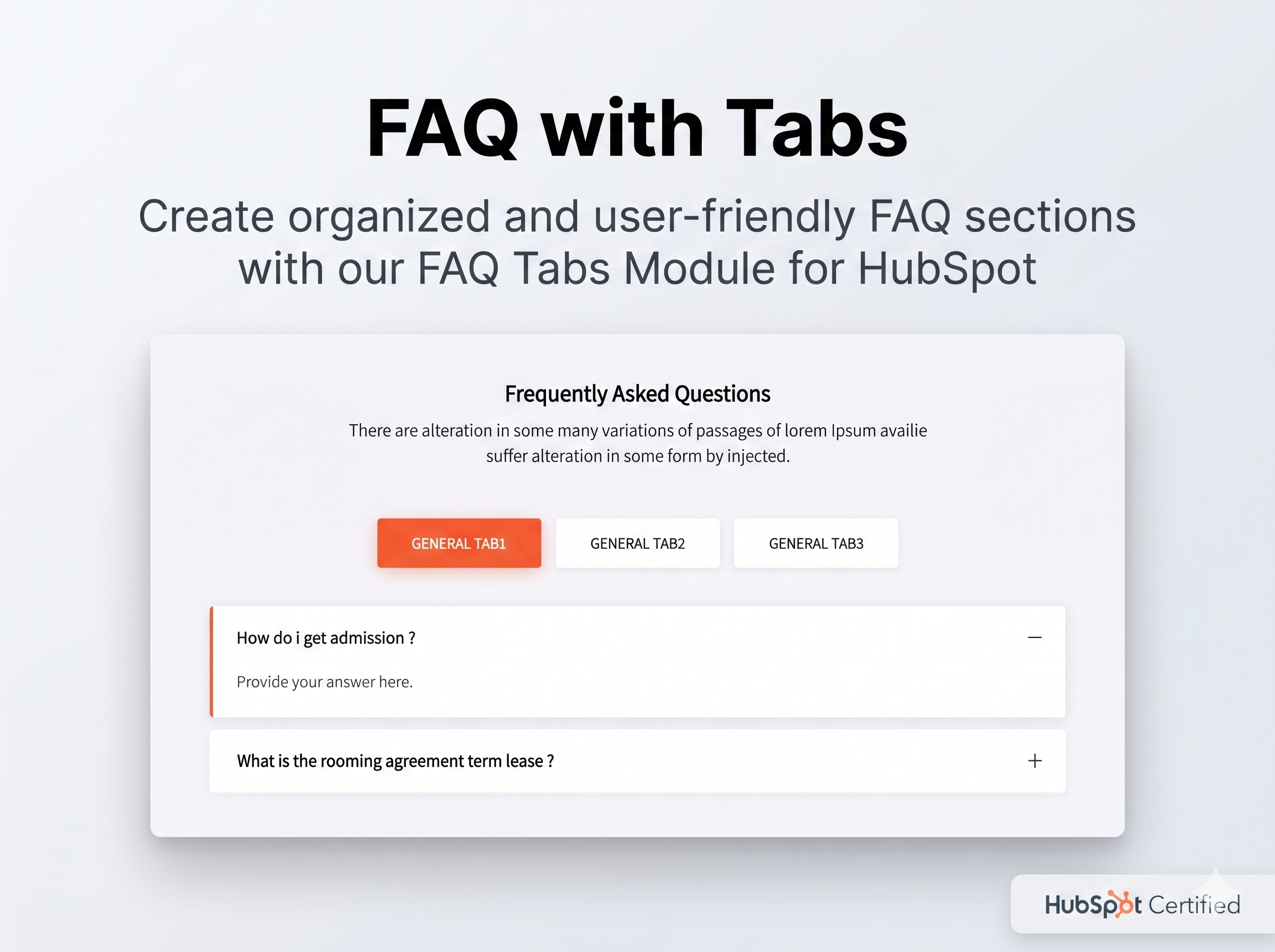
Overview
Create organized and user-friendly FAQ sections with our FAQ Tabs Module for HubSpot. Easily group questions into categorized tabs, improve content navigation, and deliver a cleaner support experience for your visitors. Fully customizable, responsive, and designed to seamlessly fit modern HubSpot websites.
Thank you for purchasing the FAQ module.
This guide explains how to use the module inside HubSpot CMS after it has been installed in your account.
What This Module Does
The FAQ module lets you display frequently asked questions in a clean tabbed layout with accordion answers.
It includes:
- A section title
- An optional intro text
- Category tabs
- Expandable question-and-answer items
This module is useful for:
- Product FAQs
- Service FAQs
- Support pages
- Pricing or billing questions
- Category-based knowledge sections
Before You Start
Make sure:
- The module has already been installed in your HubSpot account
- You have access to edit HubSpot pages or blog content
- You are using a page, landing page, blog post, or blog listing that supports custom modules
How To Add The Module To A Page
- In HubSpot, open the page editor.
- Open the left sidebar and search for
FAQ with Tabs - CV. - Drag the module into the page where you want the FAQ section to appear.
- Click the module to open its editing options.
Module Fields
When you click the module, you will see two main content areas and one repeatable category group.
Header
Use the Header field for the main title of the FAQ section.
Example:
Frequently Asked Questions
Subheader
Use the Subheader field for a short introduction below the title.
Example:
Find quick answers to the most common questions about our services, pricing, and support.
This field supports rich text, so you can add simple formatting if needed.
How To Add FAQ Categories
The module uses repeatable categories. Each category becomes one tab in the front-end layout.
To add a category:
- Find the
FAQ Categoriessection in the module editor. - Click
Addto create a new category. - Enter the category name in
Category Name.
Examples:
GeneralPricingBillingSupport
Use short category names so the tabs remain clean and readable.
How To Add Questions And Answers
Inside each category, you will find a repeatable FAQs group.
To add a question:
- Open the category where you want the question to appear.
- In the
FAQssection, clickAdd. - Enter the question in the
Questionfield. - Enter the answer in the
Answerfield.
The Answer field supports rich text, so you can include:
- Paragraphs
- Links
- Bullet lists
- Bold text
Suggested Content Structure
Example:
Category: General
- Question:
What services do you offer? - Answer: A short overview of your services.
- Question:
Who is this service for? - Answer: A short explanation of your ideal customer or use case.
Category: Billing
- Question:
Do you offer refunds? - Answer: Your refund policy.
- Question:
Can I change my subscription later? - Answer: Explain upgrade or downgrade options.
How The Module Behaves On The Page
Once published:
- The category names appear as clickable tabs
- Clicking a tab shows the FAQs for that category
- Clicking a question opens the answer
- Clicking the same question again closes it
- The first category opens by default
- The first question in the first category is expanded by default
Changing The Color Style
The module includes one style option:
Primary Color
This color is used for:
- The active tab
- The active accordion highlight
To change it:
- Select the module in the page editor.
- Open the
Stylestab or style settings for the module. - Adjust the
Primary Colorvalue.
In many HubSpot themes, this color may already inherit from your theme’s primary brand color by default.
Best Practices
- Keep answers concise and easy to scan
- Use plain language
- Group similar questions under the same category
- Avoid adding too many categories unless they are necessary
- Keep tab labels short
- Use links in answers when visitors may need more detailed information
Good FAQ Examples
Strong question examples:
How long does onboarding take?What is included in the monthly plan?Can I cancel anytime?Do you support international clients?
Weak question examples:
InfoQuestion 1More details
Publishing Changes
After updating the module:
- Review the layout in HubSpot’s page preview
- Test the tabs and accordion interactions
- Click
PublishorUpdateto make the changes live
Troubleshooting
The module is not visible in the editor
Check that:
- The module was installed successfully
- You are editing a supported HubSpot content type
- Your account user has permission to use custom modules
The tabs show, but no answers appear
Check that:
- Each category has at least one FAQ item
- Each FAQ item has both a question and an answer
The style color is not changing
Check that:
- You updated the module style setting, not only the page content
- Your theme or page-level styles are not overriding the module visually
Support
If you need help customizing or troubleshooting the module, include the following when requesting support:
- The page URL where the module is used
- A screenshot of the editor settings
- A short description of the issue
• Organized FAQ tabs for better content navigation
• Fully responsive and mobile-friendly layout
• Easy customization directly within HubSpot CMS
• Clean and modern user interface
• Supports multiple FAQ categories and tab sections
• Lightweight and optimized for performance
• No coding required for content management
• Seamless integration with HubSpot themes and pages
• Flexible styling to match your brand design
• Improves user experience and support accessibility
You must purchase this theme to leave a review.
If you have already purchased it, login and leave a review.
Be the first one to review!
FAQs
Purchase Info
Free
Released
2026-06-12
Last Update :
2026-06-15
Version :
1.0.0
Compatibility :
Pages, Blog Listing, Blog Post
Tags :
Tabs, Accordion, Knowledge Base
Related Products
CV Review Slider
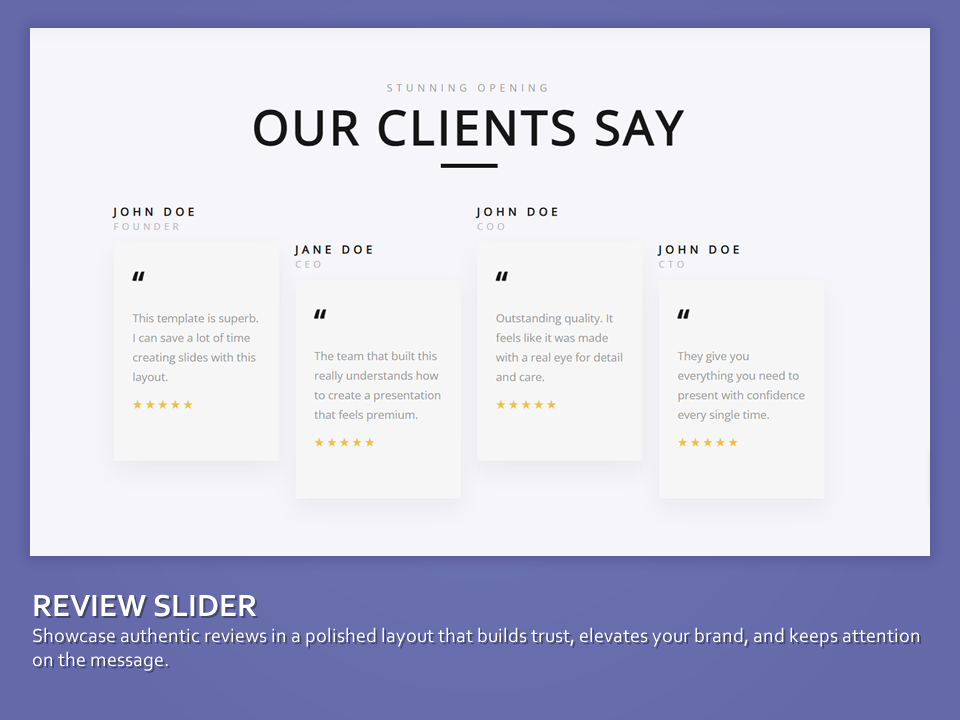
CV Review Slider is a responsive HubSpot CMS module for showcasing client testimonials with optional photos, static grid...
$15
Retail Finder
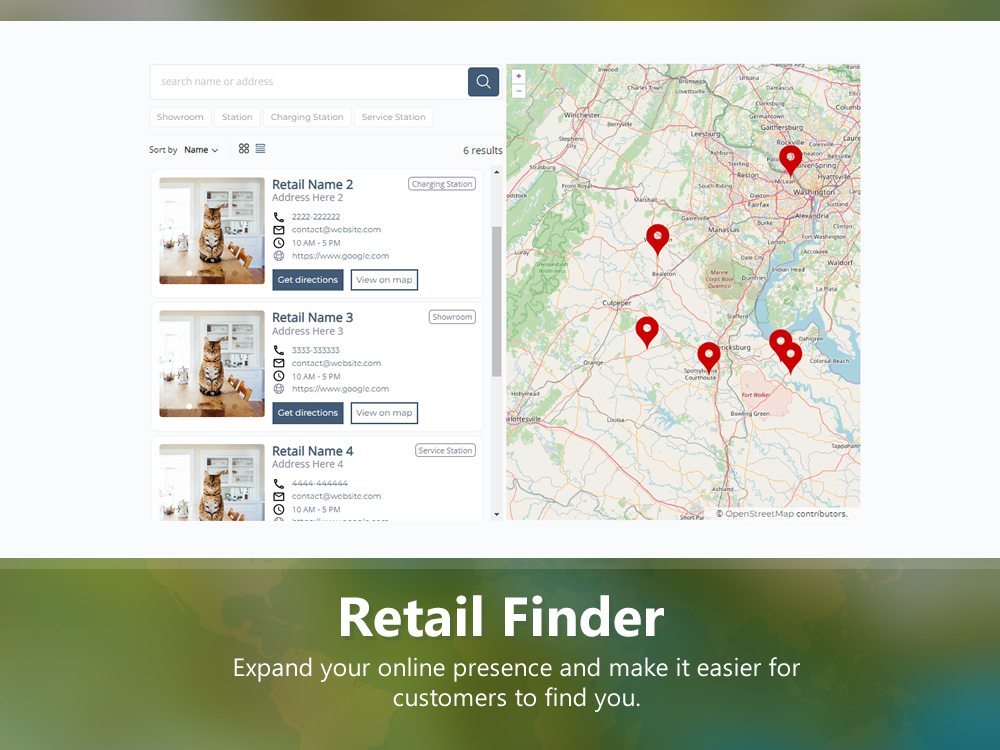
Enhance your online presence and help customers easily find your stores with Retail Finder, the HubSpot module for...
$110
Property Finder
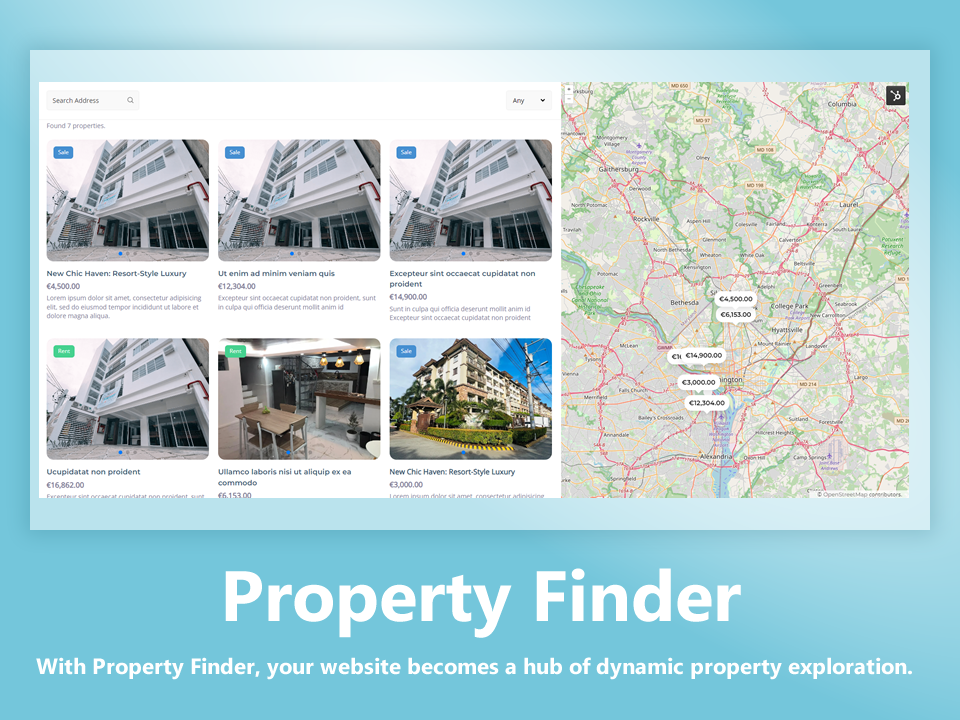
Discover Property Finder, the innovative HubSpot module transforming your website into an interactive property browsing platform. Engage visitors...
$110